
🔹 Why This Blog?
Most developers still use Visual Studio for .NET development, but VSCode is lightweight, cross-platform, and perfect for cloud-native/containerized projects. Enterprises moving toward Docker + DevOps pipelines prefer VSCode-based workflows.
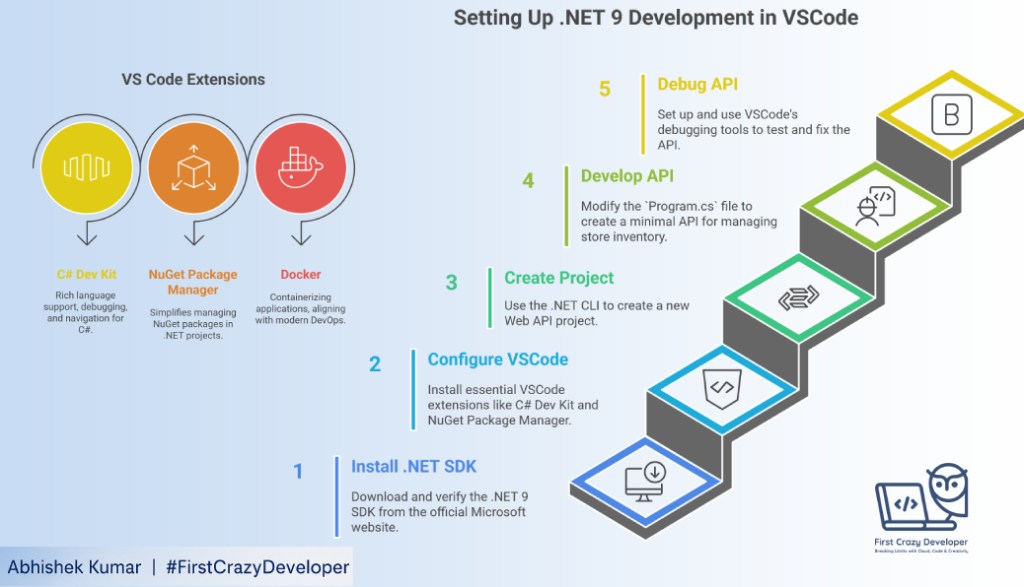
This guide provides a step-by-step walkthrough of setting up .NET 9 development in Visual Studio Code (VSCode), using a real-world API project example. It emphasizes the benefits of using VSCode for modern, cloud-native .NET development, particularly for enterprises adopting Docker and DevOps pipelines. The guide covers installation of the .NET 9 SDK, essential VSCode extensions, project creation, API development, and debugging techniques.
This guide walks through .NET 9 setup in VSCode with a real-world API project example.
🔹 Steps & Example
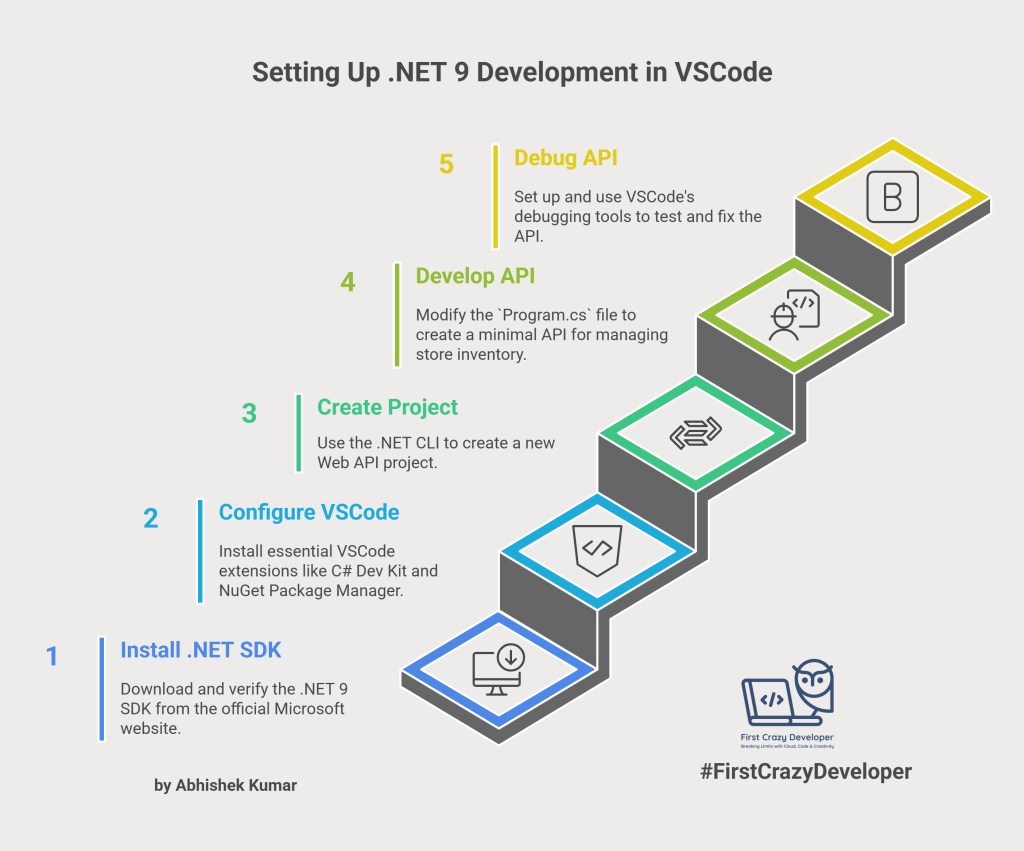
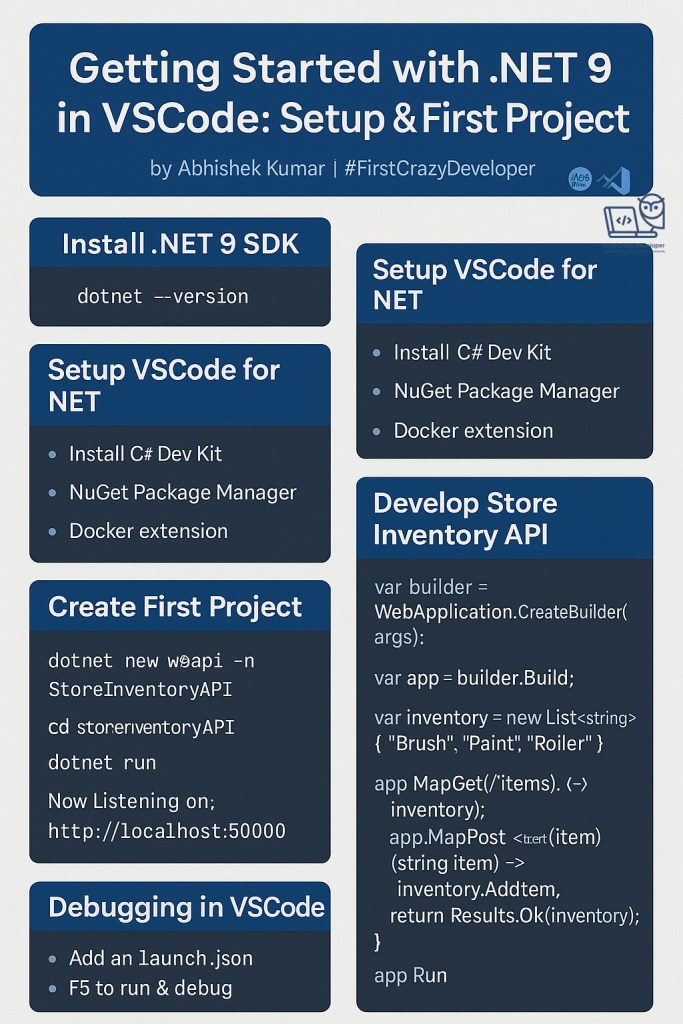
1. Install .NET 9 SDK
Download from dotnet.microsoft.com.
The first step is to install the .NET 9 SDK on your machine. You can download the appropriate version for your operating system from the official Microsoft website: dotnet.microsoft.com.
After installation, verify that the SDK is correctly installed by opening a terminal or command prompt and running the following command:
Verify:
dotnet --version
2. Setup VSCode for .NET
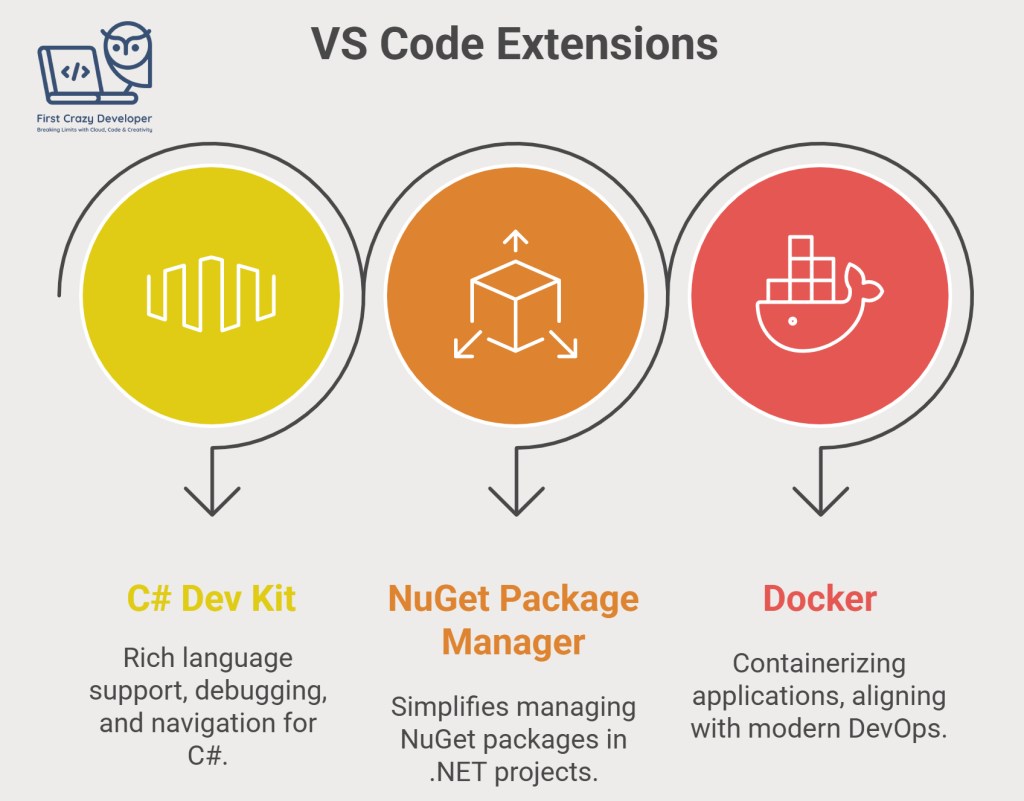
Next, configure VSCode for .NET development by installing the necessary extensions:
- C# Dev Kit: This extension provides rich language support for C#, including IntelliSense, debugging, and code navigation.
- NuGet Package Manager: This extension simplifies the process of managing NuGet packages within your .NET projects.
- Docker: While not immediately necessary for basic API development, the Docker extension is crucial for containerizing your application later, aligning with modern DevOps practices.
You can install these extensions directly from the VSCode marketplace.
3. Create First Project
dotnet new webapi -n StoreInventoryAPI // Create new API Project
cd StoreInventoryAPI // Move to project folder
dotnet restore // Restore all Nuget Packages
dotnet run // Run the API
This will create a new directory named StoreInventoryAPI containing the basic structure of a .NET Web API project. The dotnet run command will build and run the application, which should be accessible at http://localhost:5000.
Output:
Now listening on: http://localhost:5000
4. Real-World Example: Store Inventory API
Let’s modify the Program.cs file to create a minimal API for managing a store inventory:
var builder = WebApplication.CreateBuilder(args);
var app = builder.Build();

var inventory = new List<string> { "Brush", "Paint", "Roller" };

app.MapGet("/items", () => inventory);
app.MapPost("/items/{item}", (string item) =>
{
    inventory.Add(item);
    return Results.Ok(inventory);
});

app.Run();
This code defines two API endpoints:
GET /items: Returns the current inventory list.POST /items/{item}: Adds a new item to the inventory list.
You can test these endpoints using a browser or a tool like Postman:
GET http://localhost:5000/items→ returns the initial inventory:["Brush", "Paint", "Roller"]POST http://localhost:5000/items/Thinner→ adds “Thinner” to the inventory and returns the updated list.
5. Debugging in VSCode
To debug your API in VSCode, you need to create a launch.json file. This file configures the debugger for your project. VSCode can automatically generate this file for you.
- Go to the Run and Debug view in VSCode (Ctrl+Shift+D).
- Click on “create a launch.json file”.
- Choose “.NET” as the environment.
Now, you can set breakpoints in your code by clicking in the gutter next to the line numbers. Press F5 to start debugging. VSCode will attach the debugger to your running application, allowing you to step through the code, inspect variables, and identify any issues.
🔹 Real-World Use Case
This simple inventory API serves as a foundation for more complex applications. It can be scaled to handle warehousing or retail inventory management. Enterprises often start with APIs like this for rapid prototyping before expanding into microservices and containerized deployments.
🔹 Abhishek Take
VSCode combined with .NET 9 offers a powerful and future-proof development environment. For enterprise teams, I highly recommend adopting minimal APIs in VSCode for faster prototyping and then transitioning to Docker and CI/CD pipelines. This approach ensures that your applications are cloud-ready from the outset, promoting agility and scalability.
#DotNet #CSharp #VSCode #Azure #CleanCode #DeveloperCommunity #FirstCrazyDeveloper #AbhishekKumar
 First Crazy Developer
Leave a comment